
Why I Think Claude Code Is a Perfect Match for Obsidian
It is all about markdowns.
When I was watching the talk Don’t Build Agents, Build Skills Instead on YouTube, one of the comments made me laugh out loud:
two guys giving a 16 minute talk about markdown files to a packed audience 🤩
The more I work with AI for coding and other tasks, the more I realize I’m writing markdown most of the time. And what else is markdown? Obsidian, my personal knowledge base management system — a bunch of markdown files.
It feels natural to run the claude command in my Obsidian vault directory. Teresa Torres, in this podcast Full Tutorial: Build Your Personal OS with Claude Code in 50 Min, shared how she uses Obsidian and Claude Code to manage her workday and improve her productivity 10x. She described opening two terminal windows alongside Obsidian to coordinate her work.
That works!
But I don’t really like opening terminal windows outside of Obsidian. I want the coder experience—or the Vibe Writing experience—that I have in VSCode or Cursor. I want the terminal to sit right beside the main working panel so everything feels seamless.
With Obsidian plugins, this is quite easy to achieve, like below
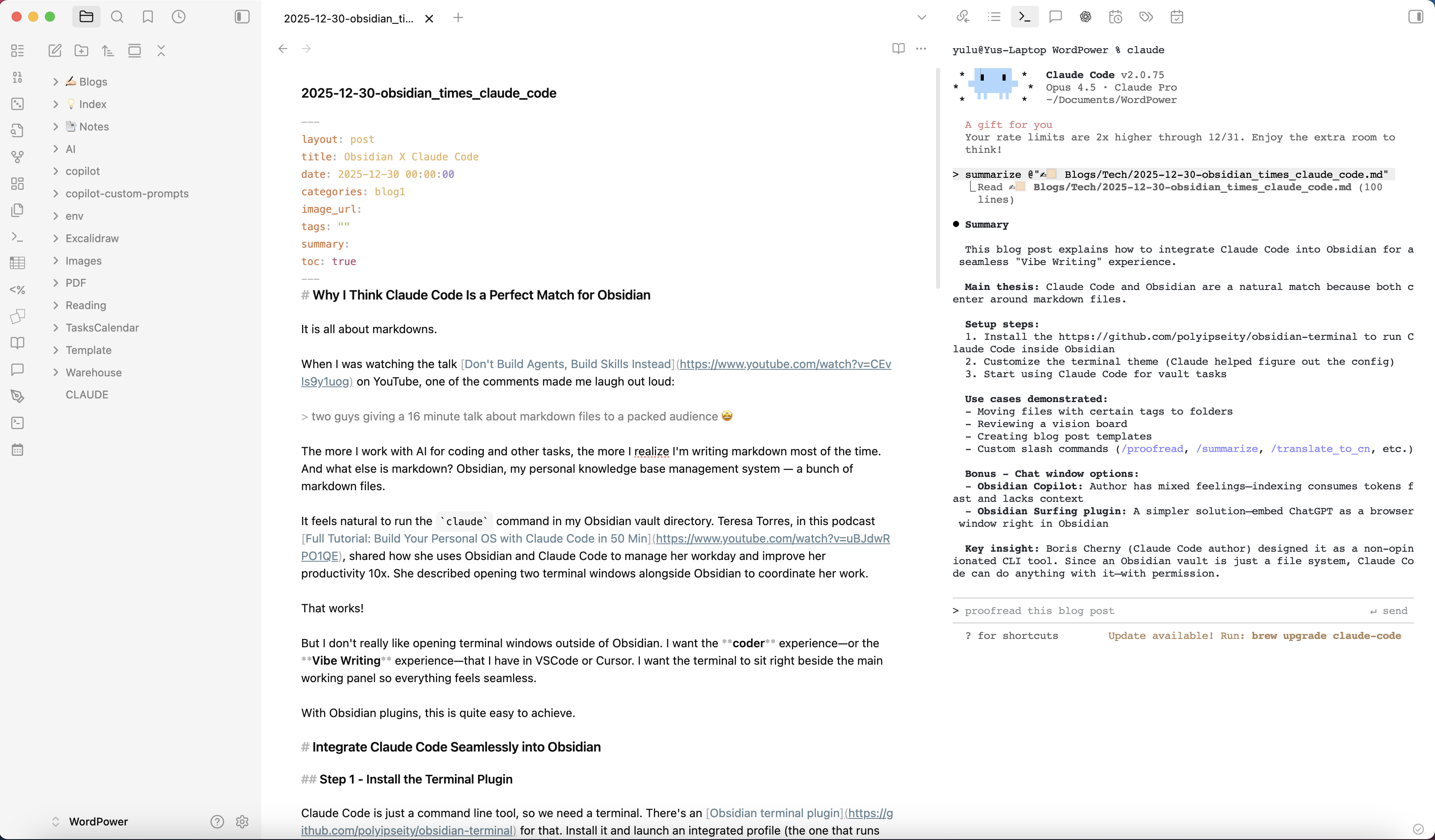
Integrate Claude Code Seamlessly into Obsidian
Step 1 - Install the Terminal Plugin
Claude Code is just a command line tool, so we need a terminal. There’s an Obsidian terminal plugin for that. Install it and launch an integrated profile (the one that runs within Obsidian).
Now type claude (assuming you’ve already installed it) and launch!
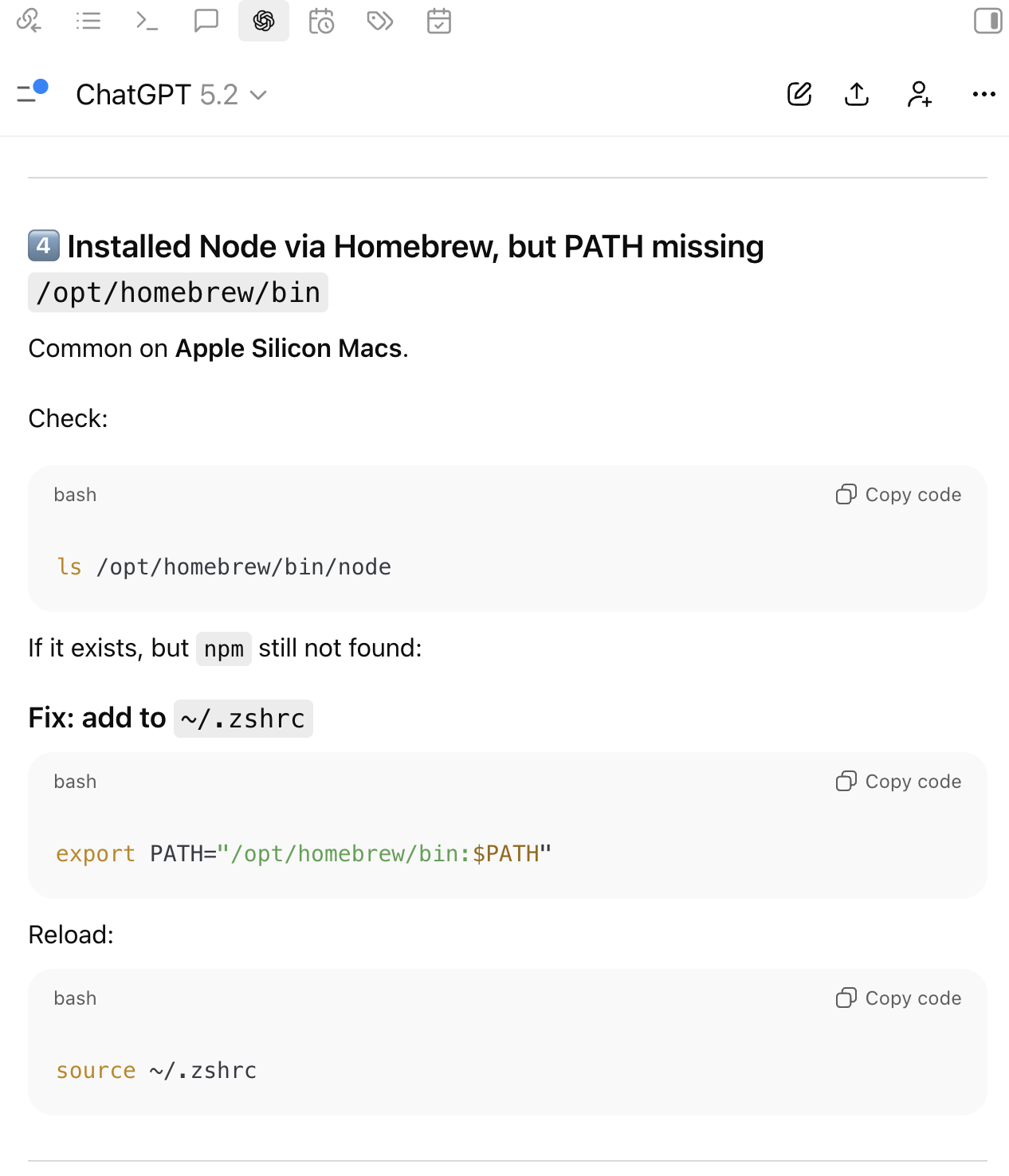
Oops, it didn’t work for me the first time. It took me a while to figure out that
nodewasn’t found because it was installed viahomebrew, andhomebrewwas missing from the PATH. Addingexport PATH="/opt/homebrew/bin:$PATH"to the env file fixed it. (Welll, ChatGPT helped me figure this out)
Step 2 - Config the Terminal Theme
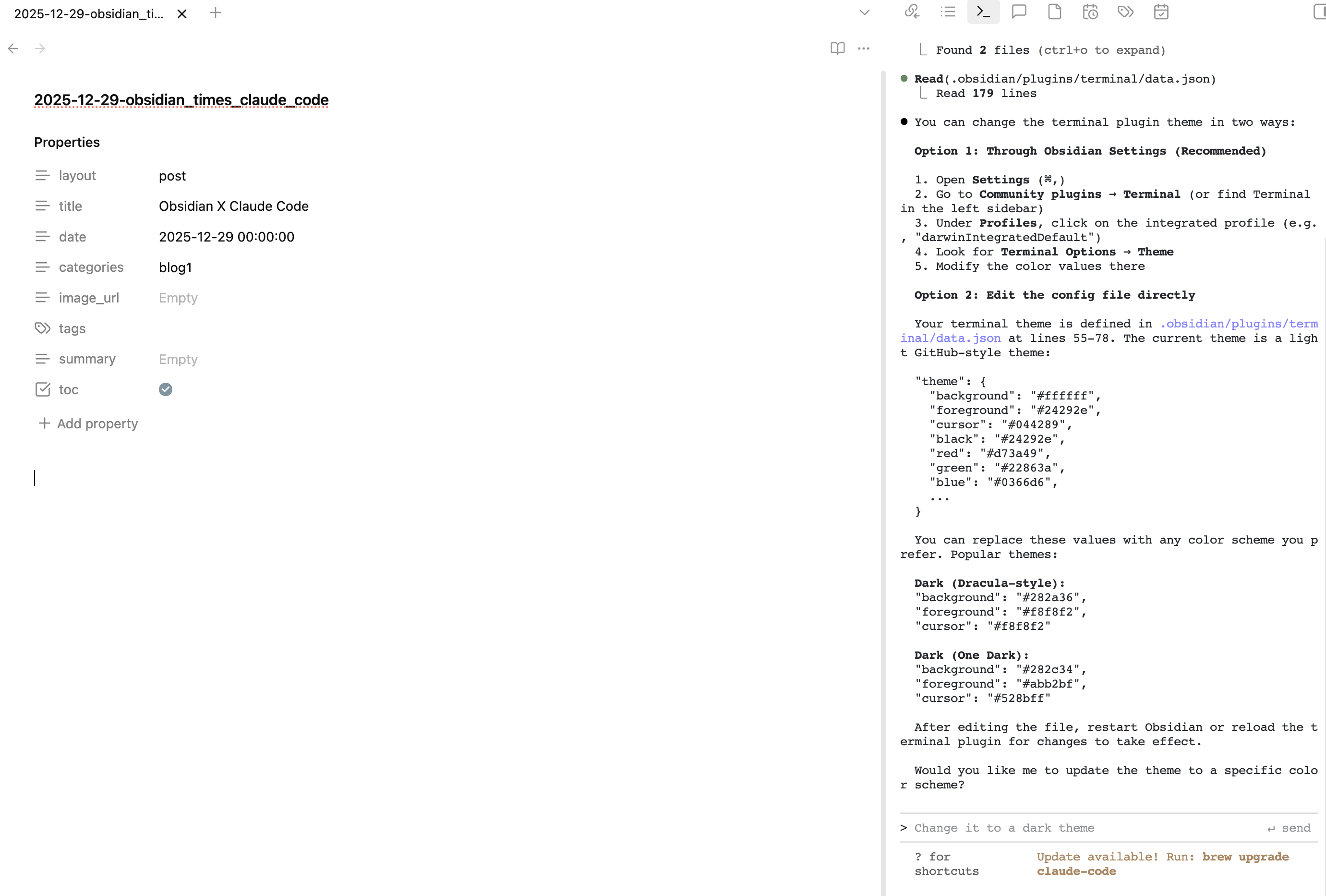
Now we have Claude Code inside Obsidian! I just don’t like the default color theme for the terminal—I always use a light theme, even for coding. The Terminal plugin’s configuration UI is too difficult to use, but luckily I have Claude now. So I simply asked Claude, “How can I change the theme for the Terminal plugin?” Boom—it figured out where to make the change in the config directory (skipping the UI entirely) and suggested a few themes.
Now I have my “Vibe Coding IDE”-like setup.
Step 3 - Start to Vibe
Some simple tasks I’ve asked Claude Code to do
- Move my files with certain tags to a folder—I’ve been using index files, tags, and a flat directory to manage my notes for a long time because hierarchical folder structures are tedious to manage. Now with AI, it’s much easier. Claude tried a few shell commands and got it done quickly.
- Ask it to review and give suggestions for my 2026 vision board. The result was stunning—worth sharing in a separate blog post.
- Ask it to create a template for my blog post drafts. This was easy for it—it studied the structure of my existing posts and the syntax of the Obsidian Templater plugin, then created a template in the right format and directory in the blink of an eye.
I can also create custom slash commands with carefully crafted prompts for common tasks, like:
/proofread/summarize/translate_to_cn/translate_to_en
etc
Bonus - Want a Chat Window in Obsidian as Well?
This setup feels a bit incomplete. I always need a chat window with AI—the copilot experience. There’s actually an Obsidian Copilot plugin that aims to be “Cursor for your Obsidian vault.”
Obsidian Copilot - Cursor for Your Obsidian Vault
I’ve been using Obsidian Copilot (free version) with APIs (paid tokens) for a while. It handles some of my routine writing tasks—proofreading, summarizing, translation—but I’m not fully convinced by the experience yet, so I haven’t upgraded to the plus (paid) version.
Some frustrations:
- I’m not a big fan of “indexing.” It requires connecting to paid models, which consumes tokens quite fast.
- The conversation lacks memories, so responses from the Copilot chat are often less optimal than chatting with ChatGPT on the web directly.
The plus version adds a middleman server between Obsidian and the models, presumably to improve the experience. However, with my Claude Code setup, it’s become less attractive to me.
Boris Cherny, the author of Claude Code, said in one of his interviews that they’re non-opinionated about how Claude Code is used—it’s just a command line tool. What a genius product idea. An entire Obsidian vault is a file system, and a command line tool can do anything with a file system—as long as you grant it permission!
Probably I just Need a Web Browser
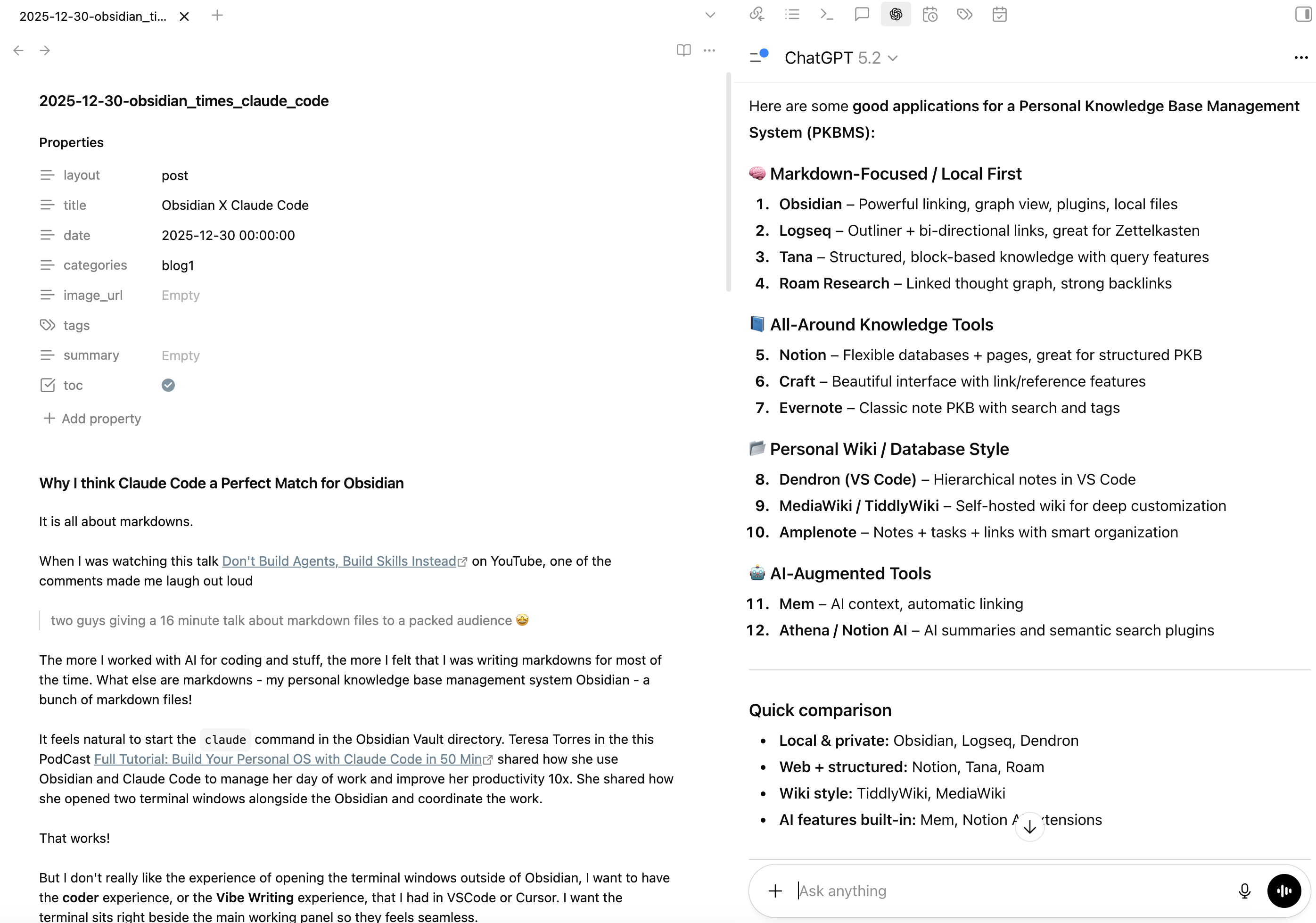
Still, I want a ChatGPT window sitting right beside my working panel that I can turn to whenever I need help—even just to check the spelling of a word.
Here comes the Obsidian Surfing plugin—a web browser inside Obsidian. Install the plugin, open ChatGPT in it, and drag the browser window to the right panel. Now I have a chat window that always sits right beside me.
References
The YouTube videos mentioned in this blog (all worth watching!):
- Don’t Build Agents, Build Skills Instead
- Full Tutorial: Build Your Personal OS with Claude Code in 50 Min
- Boris Cherny (Creator of Claude Code) On What Grew His Career And Building at Anthropic
The Obsidian plugins mentioned in this blog (all worth trying!):
