A while ago, Karpathy shared his new method for building a personal knowledge management system with LLMs, and after Obsidian got name-checked, another wave of migration followed. I do not fully agree with his approach. After spending some time with Vibe Coding and Vibe Writing, I found that letting AI help with thinking, summarizing, scaffolding, and creation does improve efficiency, but I also lose opportunities to train my brain. AI is great for messy and repetitive tasks, but when we skip the stages of thinking, summarizing, and creating for ourselves, we also lose the chance to truly internalize knowledge. I touched on this in my earlier post The Essence of Effective Learning.
Even without any LLM support, Obsidian is still an excellent personal knowledge management tool. After discovering it in 2022, I immediately migrated most of my personal notes into it. Since then, I have written a series of posts on social platforms about my experience using Obsidian: how I manage files with only index files, tags, and a single folder; the plugins I use most; how I take reading notes and music notes; and later, how I configured and optimized my setup after introducing AI.
Why I Chose Obsidian as My Main Note-Taking Tool
My note-taking history looks like this: Evernote → Google Doc / Google Keep / OneNote → Notion / Google Doc → Obsidian / Google Doc / Goodnotes. In the end, Obsidian became both my most-used and my core note-taking tool.
Before using Obsidian, I did use digital note-taking tools, but I still relied heavily on paper notebooks. After I got into Obsidian, I gradually became completely paperless for studying, reading, writing, and work notes by using a few powerful plugins it supports and by improving my own note-taking workflow.
Why did I choose Obsidian as my primary note-taking tool? In short, three core design ideas make it exceptional:
🟢 Lightweight, cross-platform file format
- It uses Markdown. Files can be directly exported as
.mdor HTML to other platforms. - It is offline-first and does not depend on the network. There is no lag in normal use, and the writing experience is smooth. Lag was the reason I gave up on Notion. I do not know whether Notion has improved since then.
- It supports cloud sync across devices. (Paid)
- You can also sync the raw note files to any cloud service such as Dropbox, Google Drive, GitHub, or S3, and then open them locally in Obsidian. That gives you cloud backup without introducing extra security risk.
🟢 Powerful JavaScript plugin ecosystem
- Web tools built on JavaScript can be integrated quickly, such as Excalidraw and Mermaid Chart. There are also many official and community automation tools and integrations, making it possible to build a largely paperless sketch-note workflow even without pen display support.
🟢 A strong system for linking files
- It makes hyperlinks and block references between files extremely easy.
- Its visualization features are powerful and help you build a knowledge system, turning your notes into a real “second brain.”
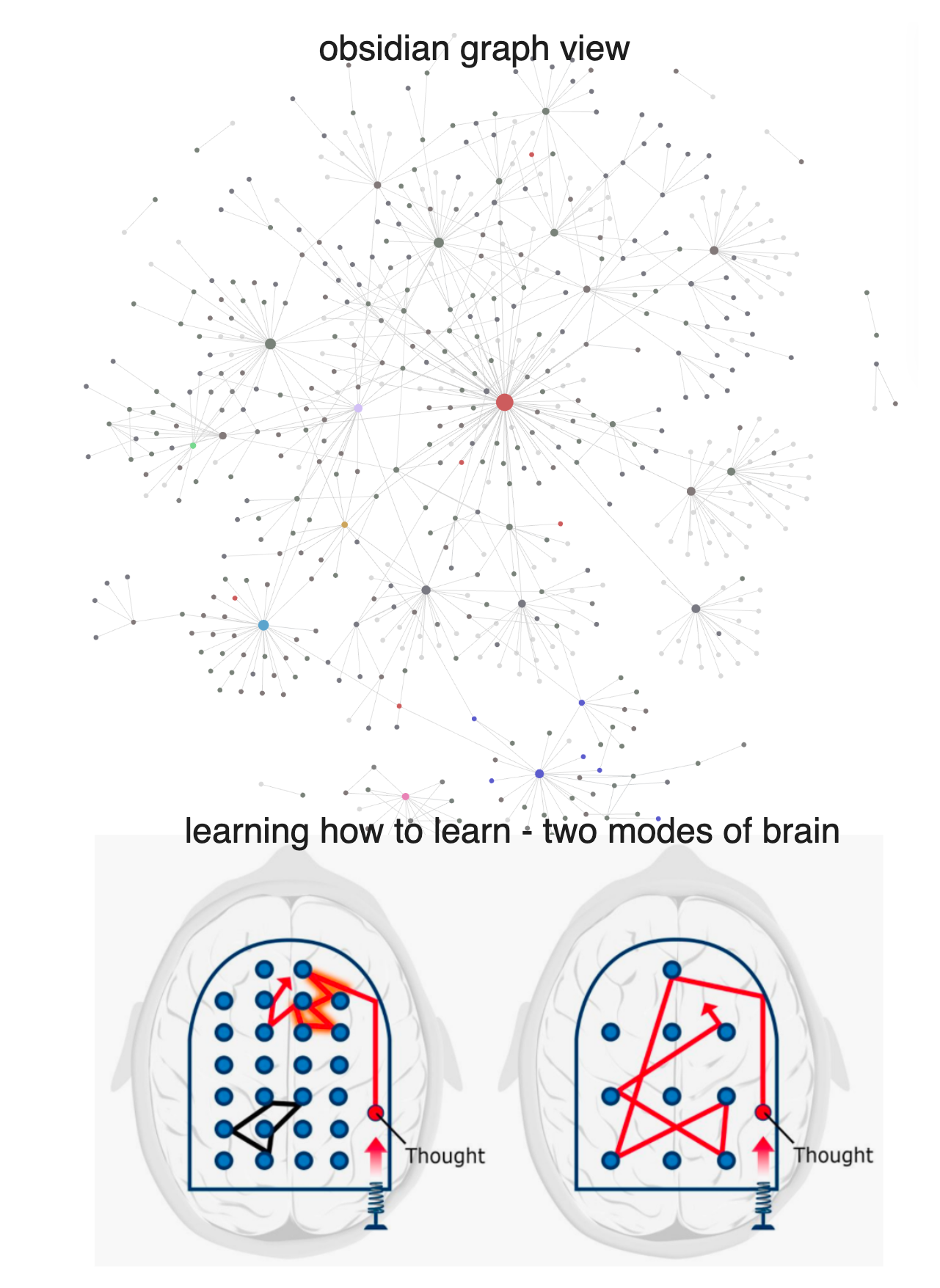
Just look at this graph view of file relationships. It reminds me of the illustrations in Learning How to Learn that explain different modes of thinking in the brain.
How I Use Obsidian in Daily Study and Work
I only keep two main vaults: work notes and personal notes. My work vault lives directly inside the company Google Drive. It does not use Obsidian’s multi-platform sync because it is only for work. Google Drive itself keeps local and cloud copies synchronized, and since it is part of the company’s private environment, there is no meaningful data security concern.
For my personal notes, I pay for Obsidian Sync so everything stays available across devices. Whether I am on my phone or computer, I can open it anytime and jot things down.
For file management, I borrowed an approach from a YouTube creator: no folder hierarchy for text notes. All text notes live in one directory, and I categorize them through a handful of index files. I also use tags and Dataview to auto-generate lists for notes of the same type. Most files remain scattered and are connected only through backlinks. That is really the essence of Obsidian, and it fits the associative, non-linear way I think as an INFP.
Obsidian Plugins I Use Often
Obsidian’s plugin ecosystem is rich, but the number of plugins I use heavily in day-to-day note-taking is actually small. I agree with the view that tools exist to improve efficiency, and simplifying the workflow is itself part of efficiency. Fewer, better tools work best. I will skip the more basic formatting and layout plugins like Advanced Tables, Calendar, Templater, and Dataview. Here are the ones I consider real productivity multipliers for study and work:
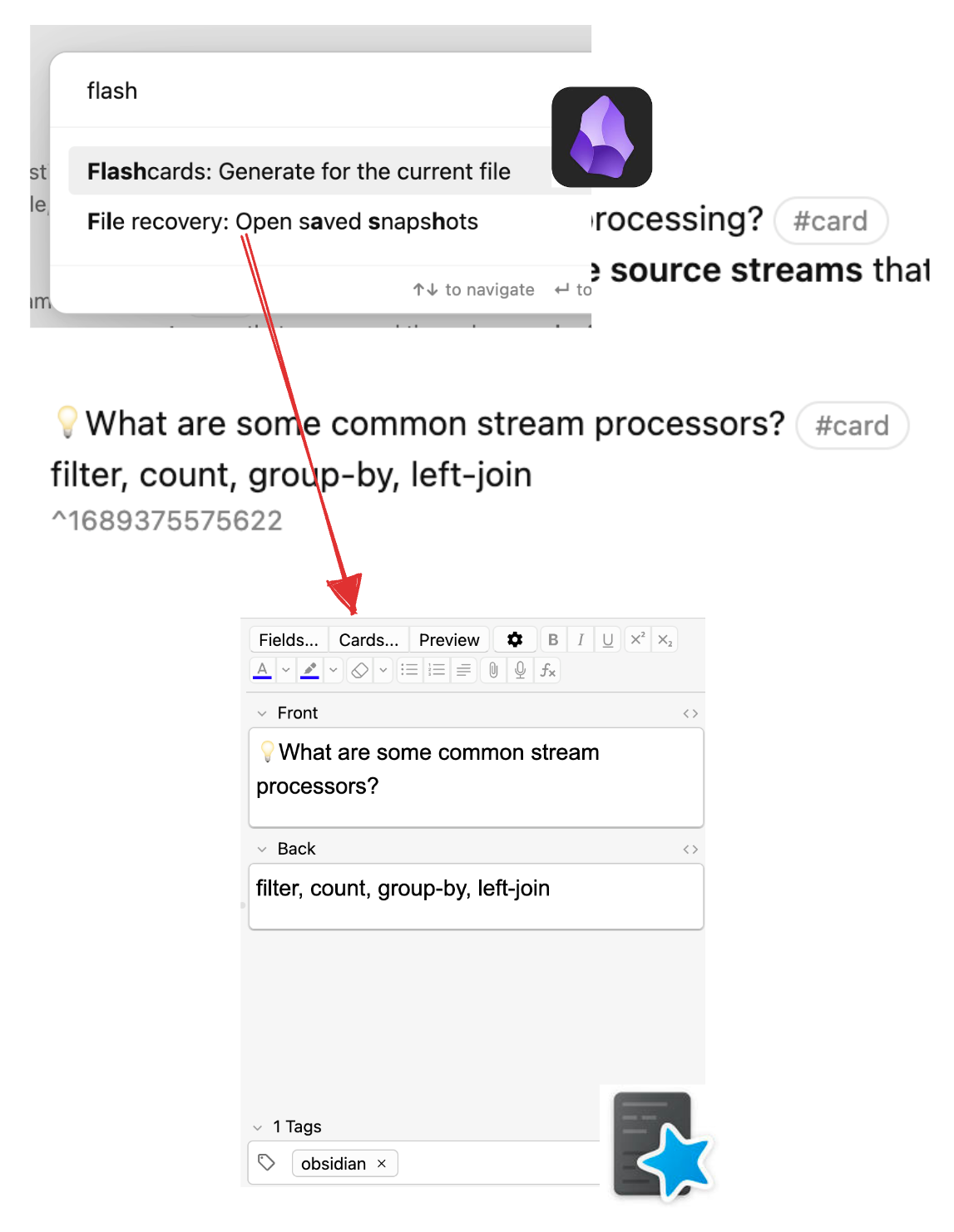
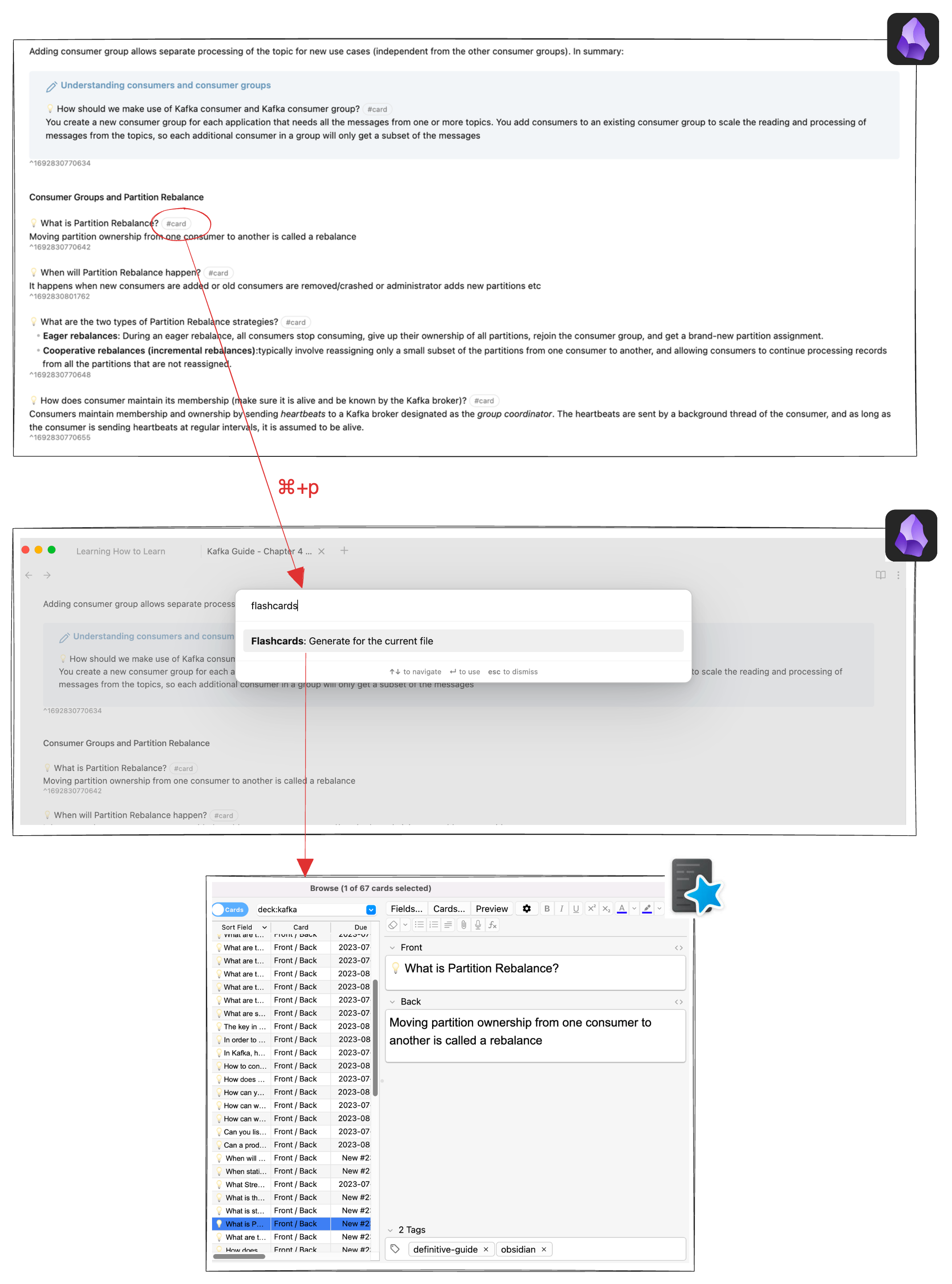
Flashcard: Turn key notes directly into Anki flashcards
After installing the plugin, you also need the Anki desktop app and the right permissions configured. Then in an Obsidian note, you can use #card or another custom format to write notes as question-and-answer flashcards. With one command, you can export those cards into Anki. Anki is available on multiple platforms and lets you review based on spaced repetition.
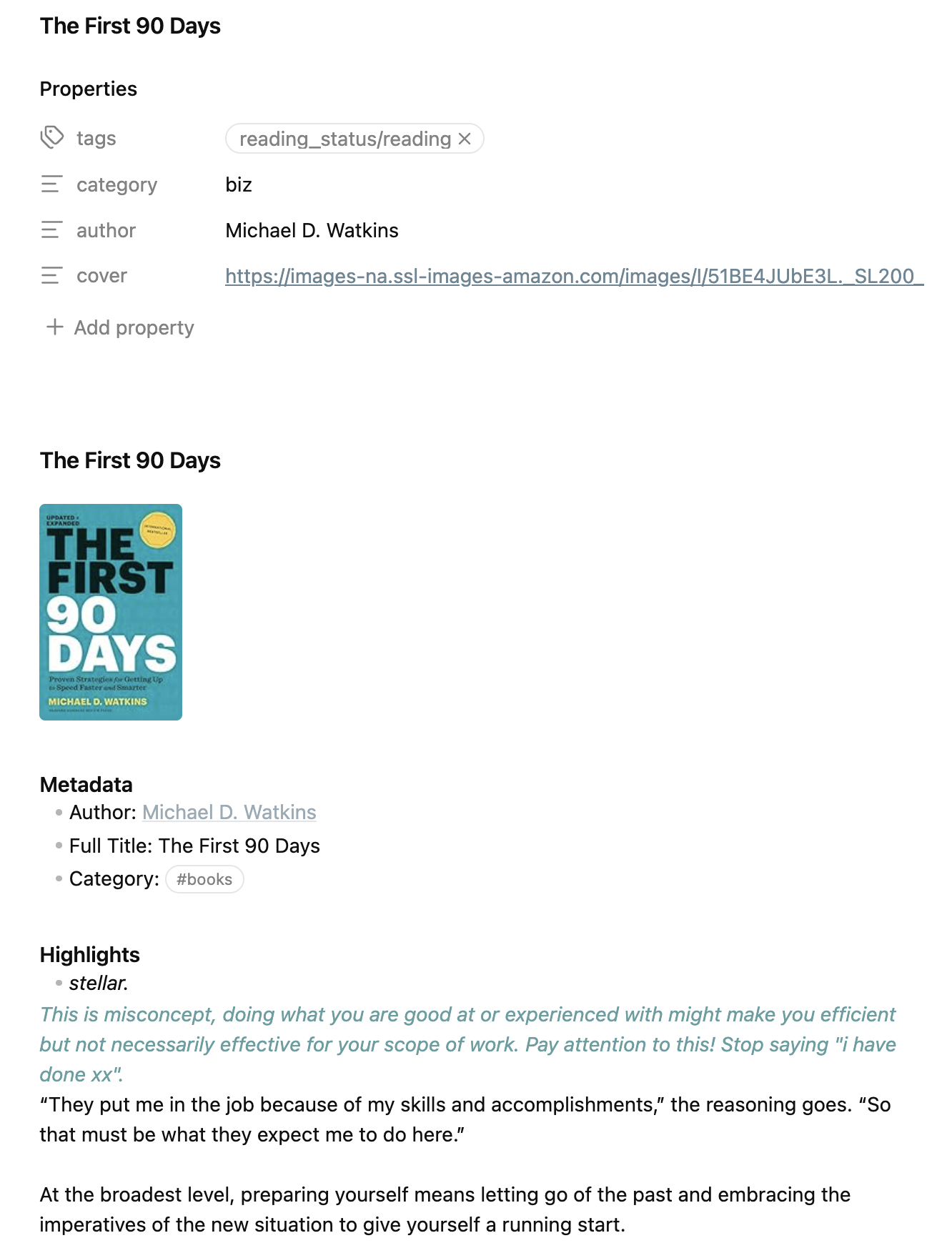
Readwised: a one-click way to sync Kindle highlights and notes
Once Readwised are authorized, highlights and notes from your e-books can be imported directly.
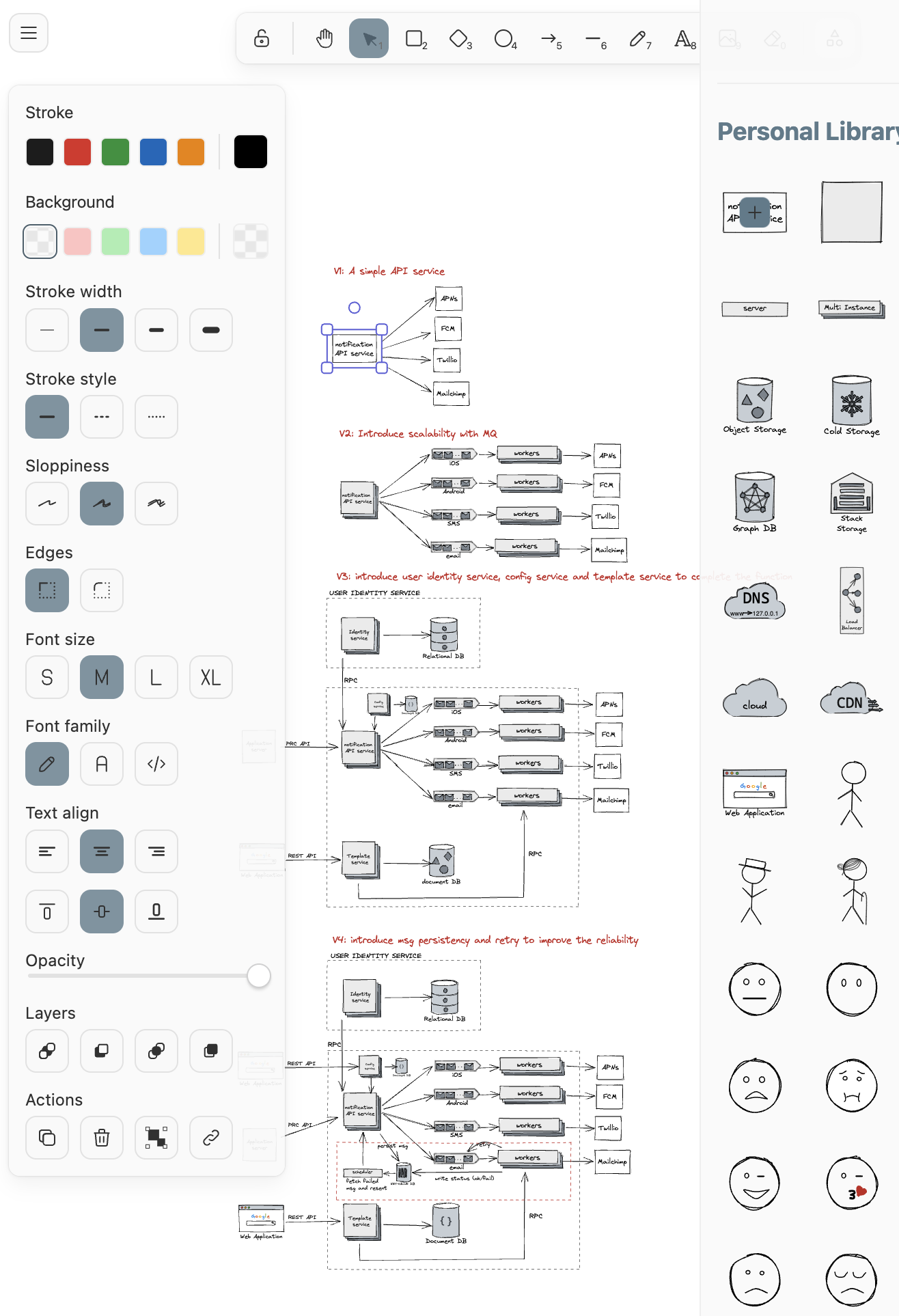
Excalidraw: A simple and intuitive drawing tool
Excalidraw is a very popular open-source drawing tool, and its integration with Obsidian is excellent. You can directly reference text, images, and even other diagrams inside a drawing using wiki-link syntax. Its default visual style looks hand-drawn, so it can largely replace sketching by hand.
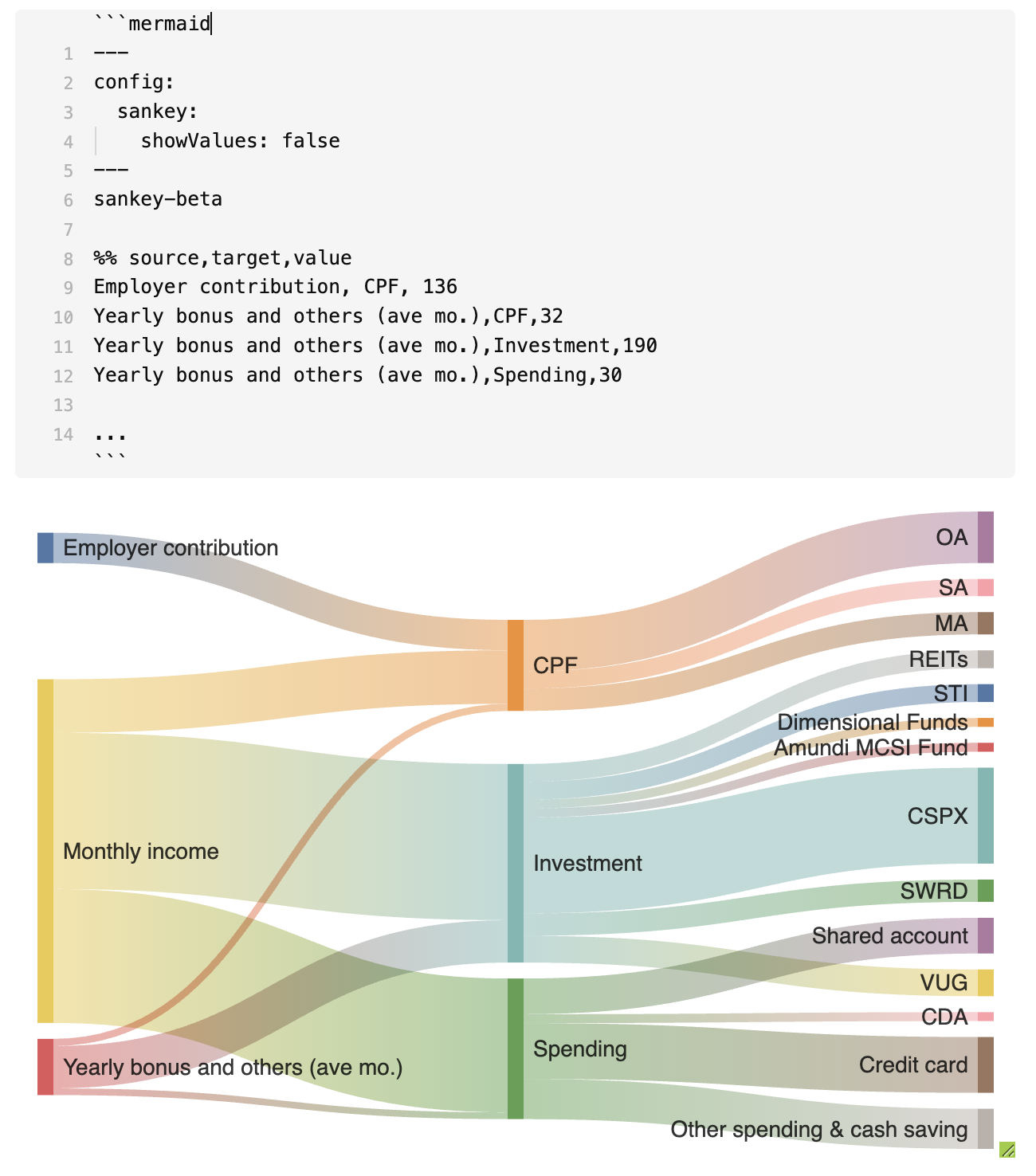
Mermaid flowcharts (built-in, not a plugin)
Add the keyword mermaid at the start of a code block and you can generate all kinds of diagrams directly from Mermaid code.
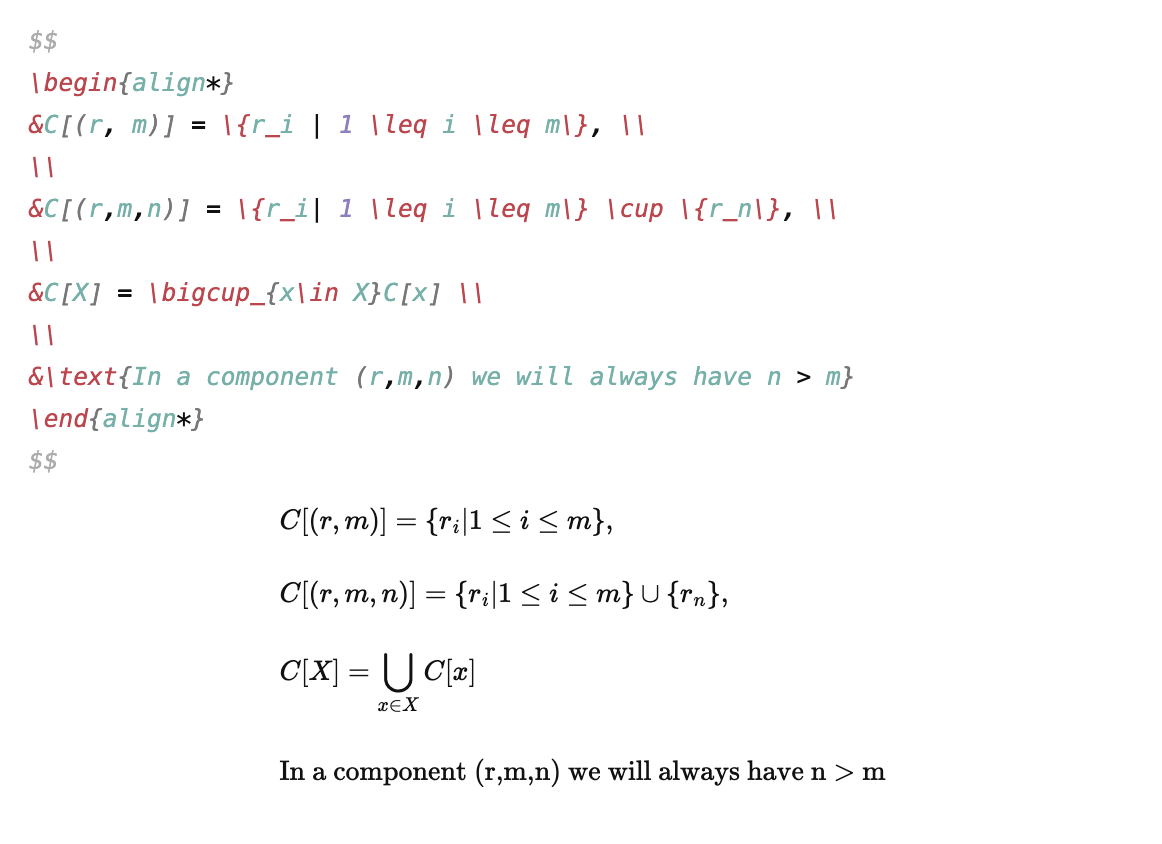
LaTeX math expressions (built-in)
Use $$ to directly enter LaTeX mathematical expressions.
Paperless Reading Notes
I have my own note-taking method when doing a close read of a technical or textbook-style book. I talked about this earlier in my post on the nature of learning. There are a few key ingredients to learning knowledge well: focus mode, chunking, active recall, and spaced repetition.
This is essentially how we learned in school: classroom learning (focus mode) → understanding and memorization based on comprehension (chunking) → reinforcement through exercises and exams (active recall, spaced repetition).
Active learning requires focus, memory, and repeated practice—all of which are difficult. Without the structure of school and teachers, we tend to avoid difficult tasks, because our brains naturally resist effort. As a result, our learning methods become inefficient highlighting and copying.
Ineffective learning methods
- repeatedly rereading materials
- highlighting
- copying notes
Effective learning methods
- active recall
- spaced repetition
- categorization
- interleaving
- tracking progress
Changing how we take notes can help us learn more efficiently.
First, note-taking should not be simple copying; notes should be transformed into question-and-answer formats. Second, when answering your own questions, avoid using the original text—use your own words, and include diagrams if helpful (active recall). Finally, reinforce knowledge through repeated retrieval to overcome the forgetting curve and convert short-term memory into long-term memory (spaced repetition). This workflow mainly relies on Obsidian’s native features along with Flashcard and Excalidraw plugins.
- In Obsidian, code snippets, Mermaid charts (UML diagrams), and LaTeX are natively supported, making it very convenient. Audio and video can also be embedded via backlinks, allowing rich note-taking.
- Use Q&A format: turn each knowledge point into a question and answer it in your own words.
- he Flashcard plugin connects these questions. By adding the
#cardtag, notes are converted into flashcards and synced to Anki. With Anki, you can review knowledge anytime and anywhere. Research shows that changing environments can also improve memory, so reviewing flashcards on your phone in different locations can be beneficial. - Organize notes and publish them as blog posts. Since Obsidian uses Markdown, with slight adjustments to structure and links, notes can be integrated into my blog system (Jekyll + GitHub).
Paperless Music Theory Notes and Sheet Music 🎼
In 2024 I wanted to learn a new skill: piano. I started from the basics of music theory and picked a Coursera course: The Fundamentals of Music Theory by the University of Edinburgh.
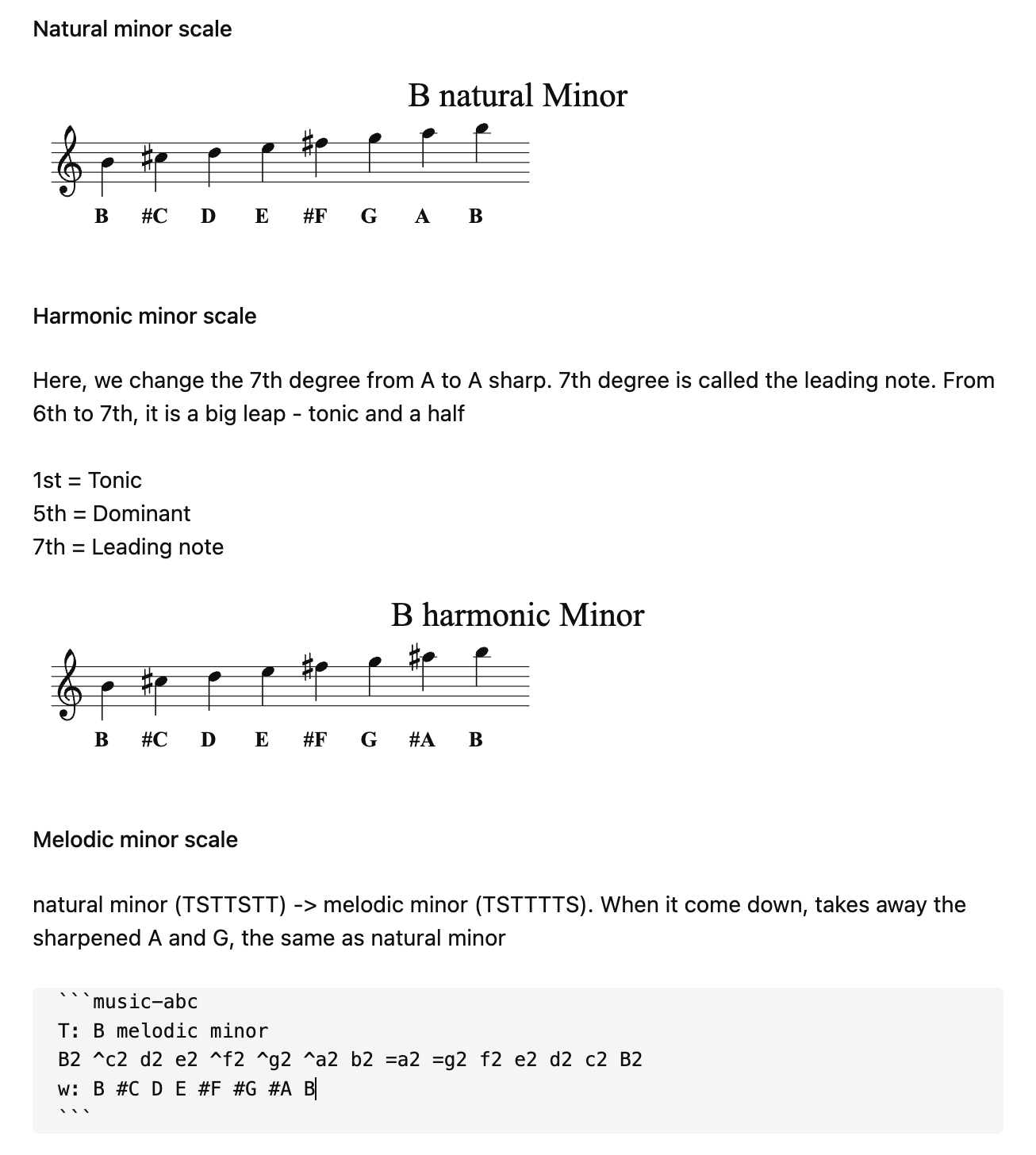
This was another case where Obsidian showed its strengths. It integrates seamlessly with the music-abc js plugin, which makes it easy to write music notation and even play it back with a click.
While taking notes alongside video lessons, I could use notation to record sheet music. This greatly helped with understanding and reviewing the material. The first week mainly covered octave, notes, staves, modes, chords, etc., training basic sight-reading ability. Sight-reading requires memory and quick reaction, something I struggled with as a child. Using Obsidian for note-taking became a form of practice, since I had to convert staff notation into ABC notation.
Music learning also requires ear training. Compared to handwritten or screenshot-based notes, music recorded in ABC notation is playable—you can click and hear it. This is very helpful for recognizing scales, modes, and chords.
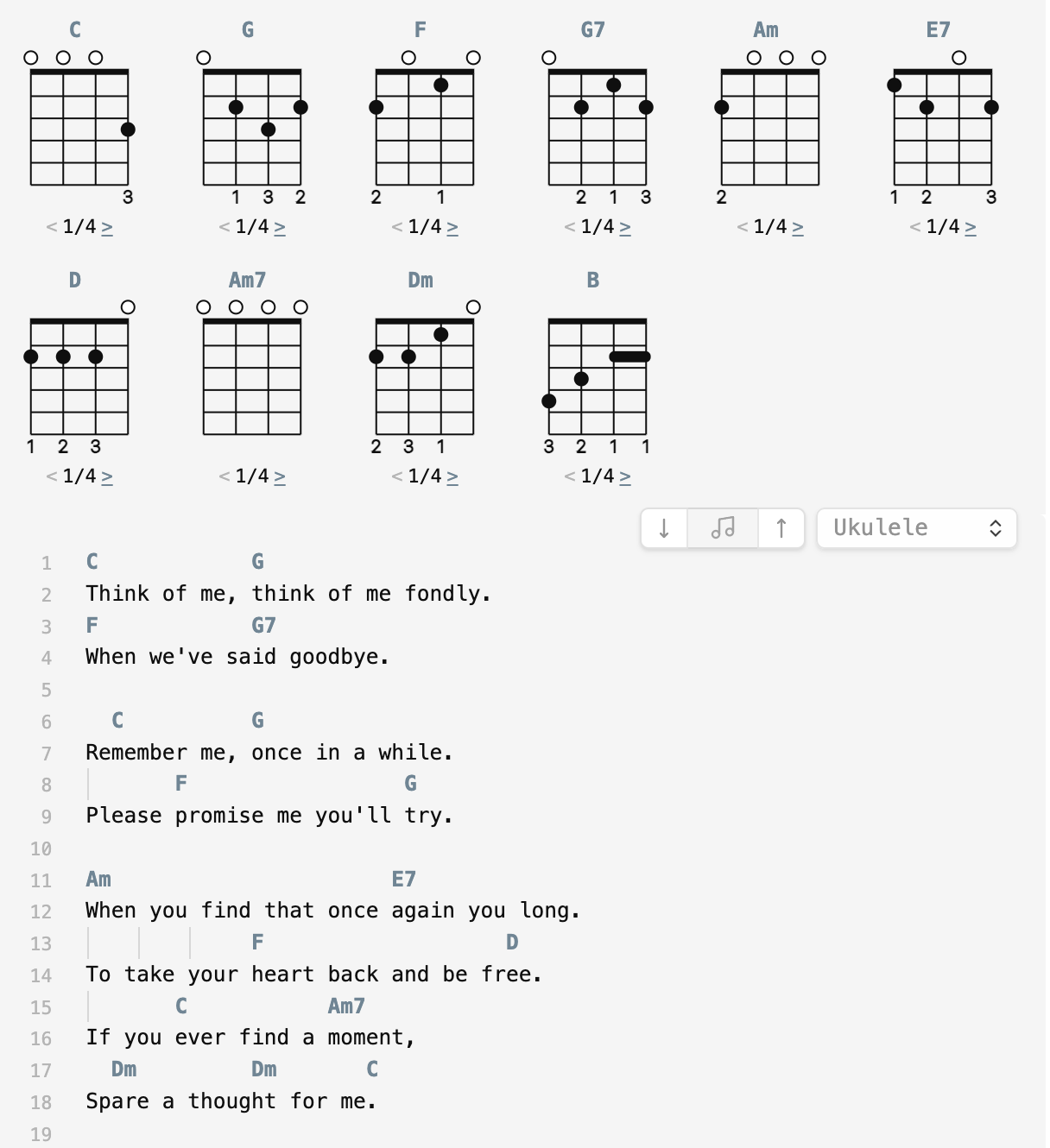
I also found another music-related plugin, obsidian-chord-sheets, which works well for storing ukulele and guitar chord charts.
My Vibe Writing Experience
I shared how I setup a seamless Vibe Writing environment by integrate Claude Code (possibly other CLI Coding Agents) into Obsidian.
With the help of the Obsidian Terminal plugin, that turns out to be very easy.
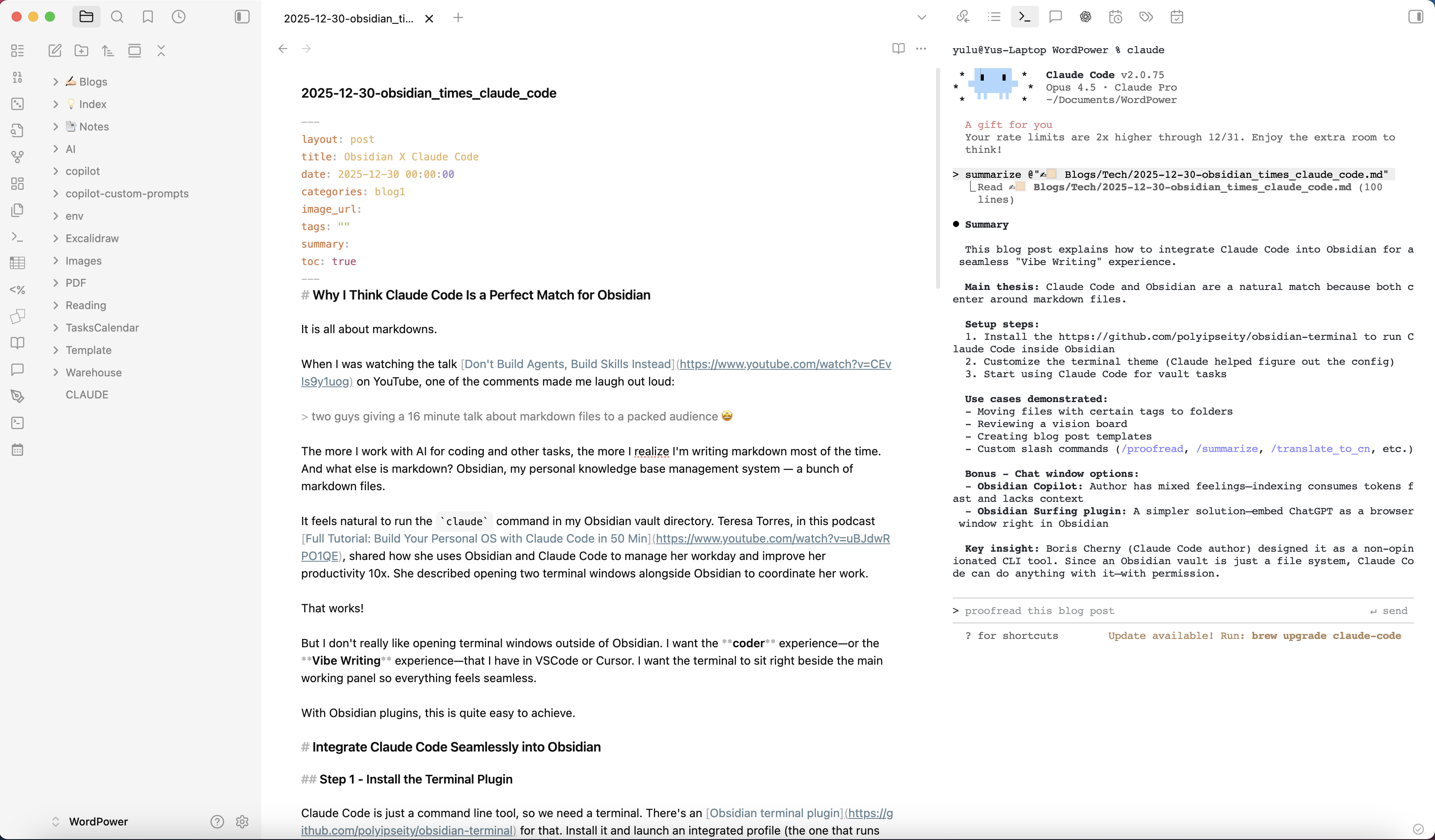
I can also create custom slash commands for common tasks with tuned prompts, such as:
/proofread/summarize/translate_to_cn/translate_to_en
and so on.
Experiments in AI-Driven Daily Planning and Knowledge Management
After getting Claude Code running inside Obsidian, I tried a few small experiments:
Expense Tracking
This is the most basic use case.
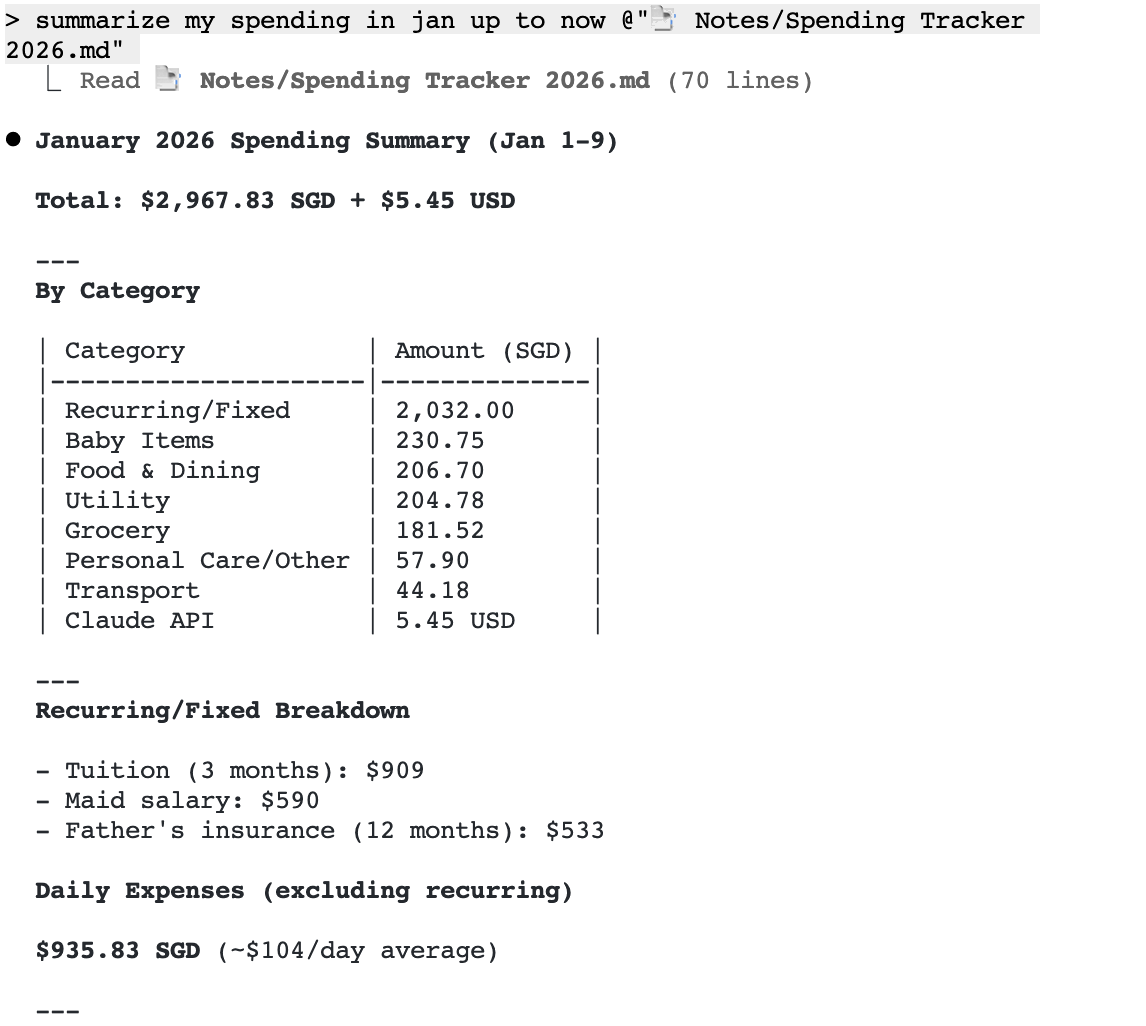
Tracking expenses is one of my KPIs this year. I can open a blank document and record each purchase in a simple format: what I bought, where I bought it, how I paid, and how much it cost. Then I let Claude Code analyze the document, and a detailed summary appears. No fancy budgeting app or cumbersome spreadsheet required.
GTD (Getting Things Done)
Inside Obsidian, I was already using a plugin to build a simple GTD system. In practice, that plugin just helps me quickly write all tasks into an inbox file. Based on the timeline, it then shows a to-do list. Periodically I review the inbox, adjust priorities, and clean up completed items.
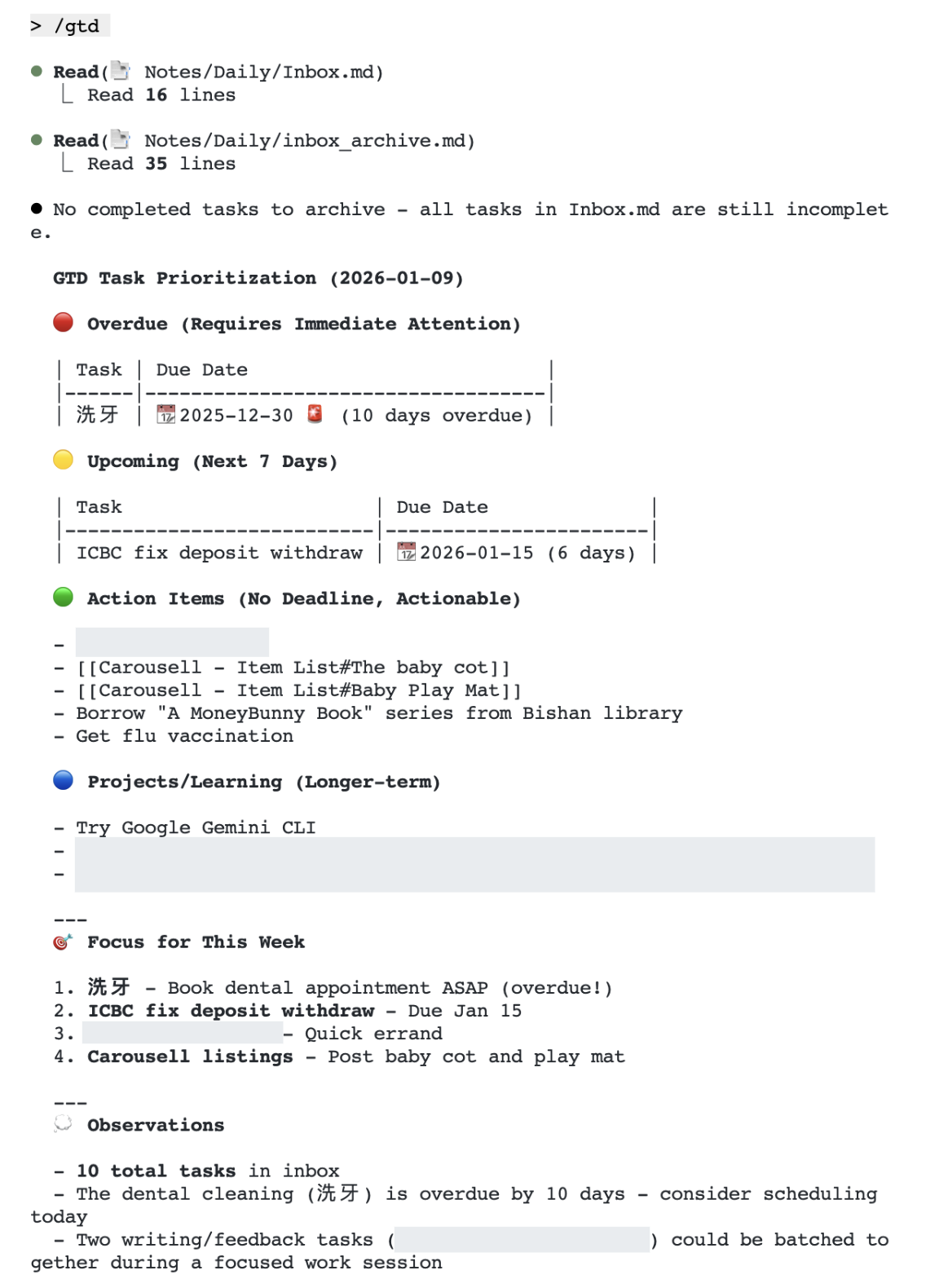
I tried letting Claude Code read the inbox file and help organize and prioritize tasks. Instantly, it produced a clear summary list, reasonably prioritized tasks, and even pointed out important items I had overlooked—such as my father’s insurance payment.
Claude also suggested archiving completed tasks into another backup file so the inbox stays clean while still preserving a record. Good idea, so I had it do that too.
Finally, in the current context, I asked Claude to help me write a prompted slash command, /gtd, that handles the entire workflow in one go: reviewing pending tasks, setting priorities, and archiving plus summarizing completed items. After that, I only need to run /gtd once.
Blog Writing
Writing in Obsidian is very smooth because it uses Markdown. It can easily be imported into static site generators such as Jekyll, Hexo, or Hugo, and then published to a personal blog.
The only part that used to require manual work was image publishing and referencing. In Obsidian, images are referenced locally, but for publishing, I needed to upload them to the cloud (S3) and replace them with URLs in the Markdown.
I had been too lazy to automate this. Then I realized this task is trivial for a coding agent. After giving Claude Code the requirements, it quickly located my configured AWS CLI and used a few shell commands to automate image uploads and link updates.
Claude Code does fail sometimes—especially with non-ASCII characters. Translation or Chinese editing often causes errors or crashes. For now, I still rely on Copilot for translation and proofreading.